
Fonts not displaying
1. Check Elementor font loading options
If you have migrated your site from a development or local environment to a live environment, please go to Elementor > Settings > Advanced > Google Fonts Load and ensure that you set it to “Swap”. Save, clear the cache, and refresh the page in the frontend.
Additionally, navigate to Elementor -> Settings -> Features -> Load Google Fonts locally, disable this option, and check if the issue persists—clear post revisions with the WP Sweep plugin.
2. Cache Issue
The problem may be due to a cache issue.
To clear the cache:
- Clear WordPress cache plugin, if applicable.
- Ask your host to clear server-side caching, if applicable.
- Clear your browser’s cache.
- After clearing all cache, check again.
- You may need to use an alternative browser or a browser in incognito mode if the browser’s cache has not been fully cleared.
HTTP/HTTPS mismatch
Navigate to Elementor > Tools.
Click Regenerate CSS & Data. The URLs should now begin with https, and your fonts should appear on the front end.
If this issue persists, you may have encountered other problems during your previous migration to HTTPS.
Navigate to Elementor > Tools > Replace URL.
In the right pane, locate the Update Site Address (URL) section.
In the old URL field, enter the site URL, including the HTTP protocol.
In the New URL field, enter the site URL with HTTPS.
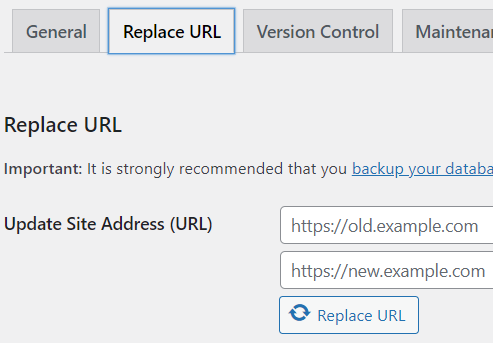
Click Replace URL.
Scroll down and click the Save Changes button.
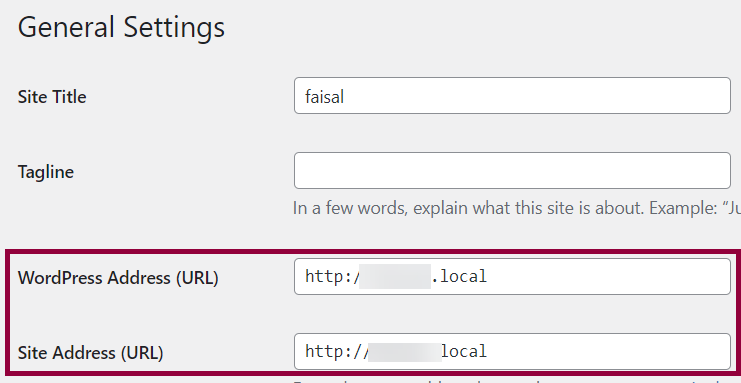
Navigate to Settings > General.
Ensure that the WordPress Address (URL) and the Site Address (URL) begin with https.