

Add New Customer Database via Email BCC
Email BCC method
Import Customers by BCC-ing Them
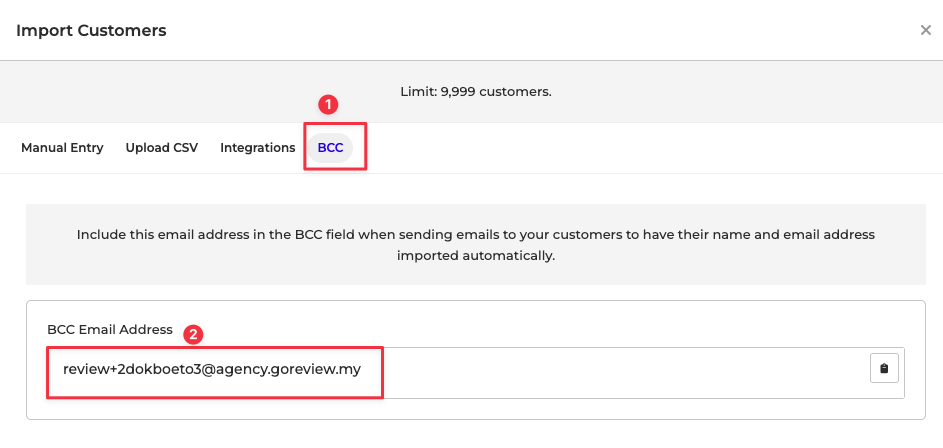
You can now import customers by including your project’s unique BCC email address when sending an email (like an invoice) to a customer. This will automatically import your customer into the platform at the same time you send your invoice. If you have Automatic Review Collection enabled, the system will also request a review from your customer.
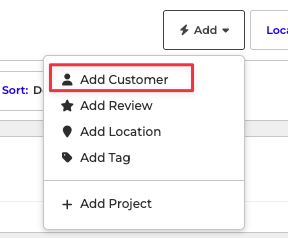
Click the import button on the Customers page, and navigate to the BCC tab to get your email address.
Add this PHP code to Snippet
/**
* @snippet Add Cc: or Bcc: Recipient @ WooCommerce Completed Order Email
* @how-to businessbloomer.com/woocommerce-customization
* @author Rodolfo Melogli, Business Bloomer
* @compatible WooCommerce 7
* @community https://businessbloomer.com/club/
*/
add_filter( 'woocommerce_email_headers', 'bbloomer_order_completed_email_add_cc_bcc', 9999, 3 );
function bbloomer_order_completed_email_add_cc_bcc( $headers, $email_id, $order ) {
if ( 'customer_completed_order' == $email_id ) {
$headers .= "Bcc: Name <your@email.com>\r\n"; // delete if not needed
}
return $headers;
}
Source: https://www.businessbloomer.com/woocommerce-add-to-cc-bcc-order-email-recipients/
Where to insert this PHP?
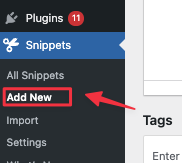
Install "Code Snippets" WordPress plugin if not installed yet
Add "new snippets"
Edit the new snippets
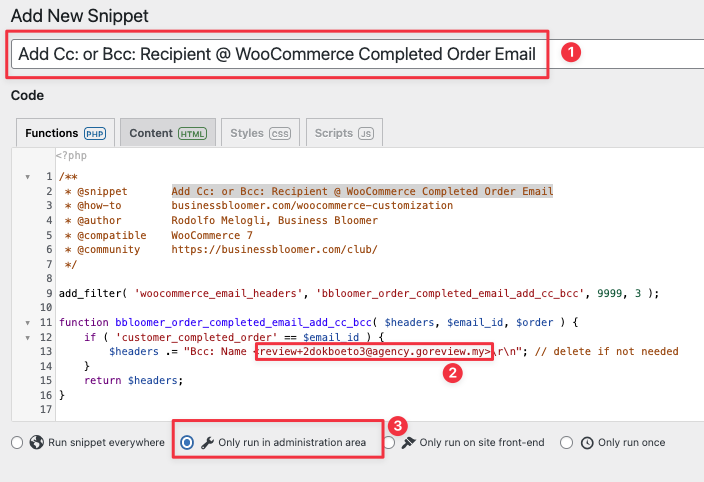
- TITLE Add Cc: or Bcc: Recipient @ WooCommerce Completed Order Email
- Replace the BCC email your@email.com with review+123asjdhalkhf@agency.goreview.my
- Choose "Only run in administration area"
Click on Save