

Sending Domain Setup
Sending Domain Setup
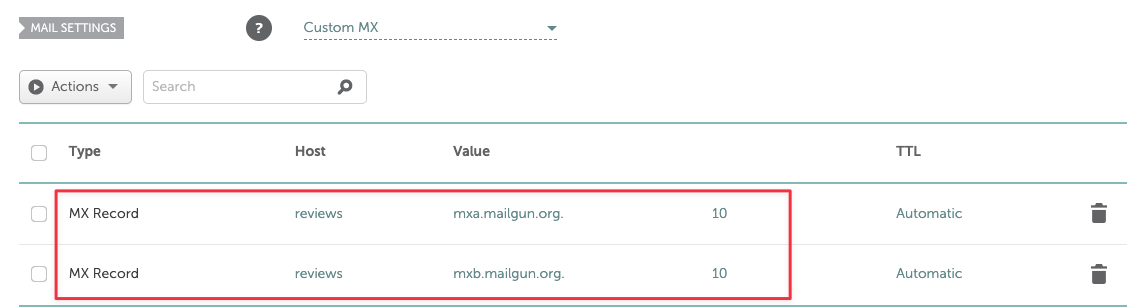
You will need to enter 4 DNS records to set up your sending domain. 2 TXT records and 2 MX records. This allows us to send emails on your behalf.
If you do not add your own sending domain, all platform emails sent to your clients will come from notifications@goreview.com.
Buying a Domain name
Refer to Domain Name Setup, purchase a domain name
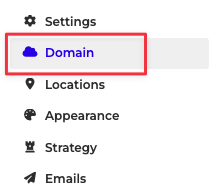
Add to Sending Domain Name
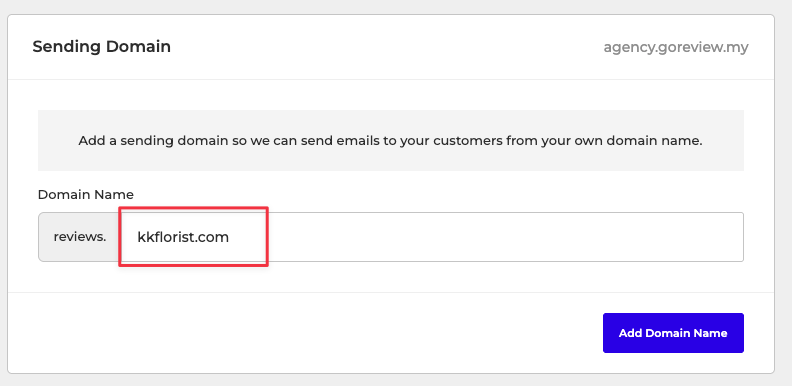
Then these records will appear..
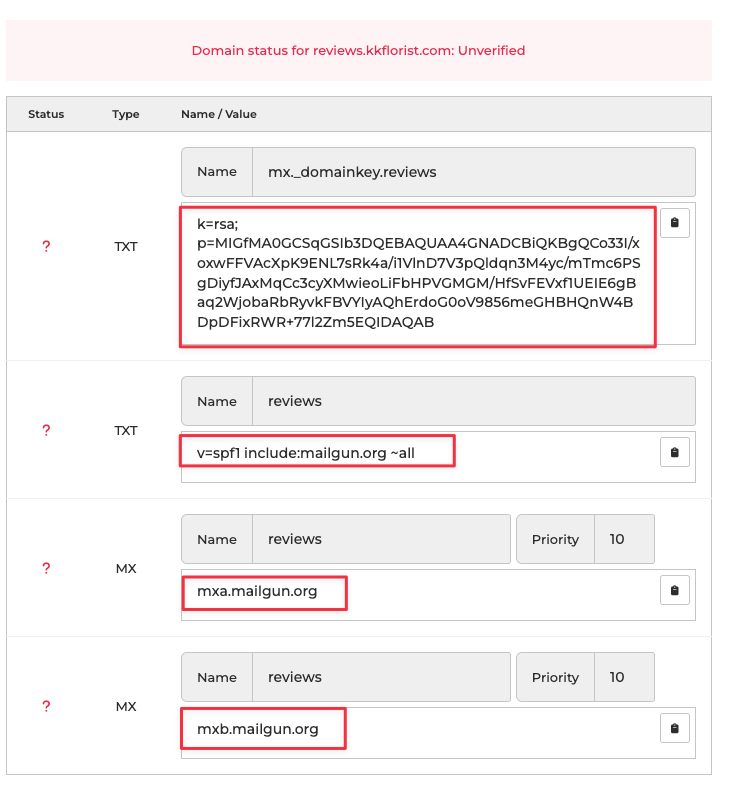
Add Records to DNS
Namecheap
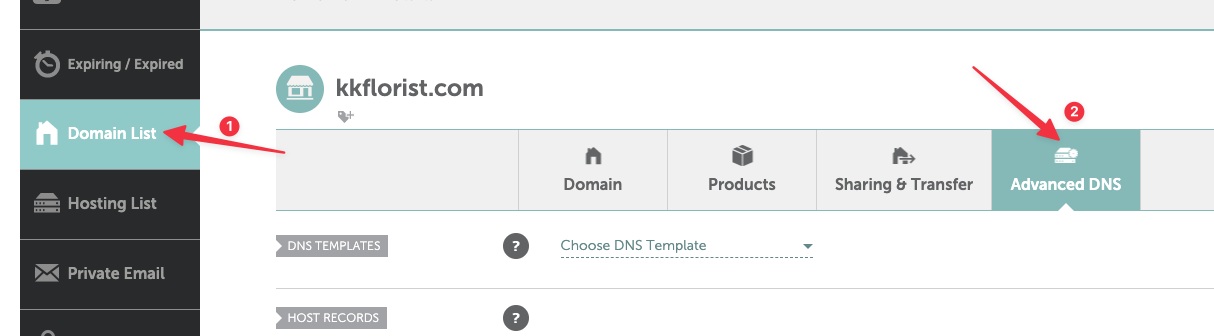
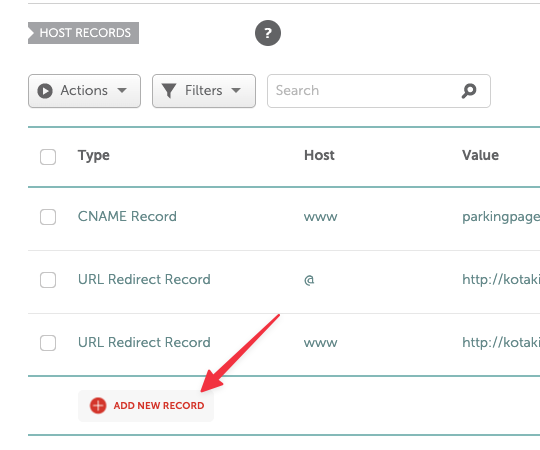
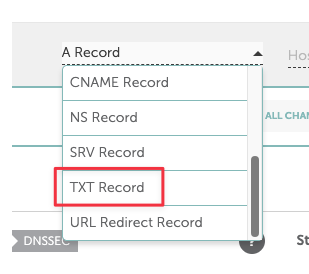
Copy the TXT Record from GoReview
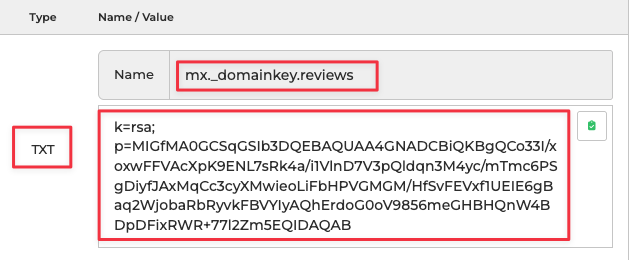
And paste it at Namecheap

Repeat to add the remaining value
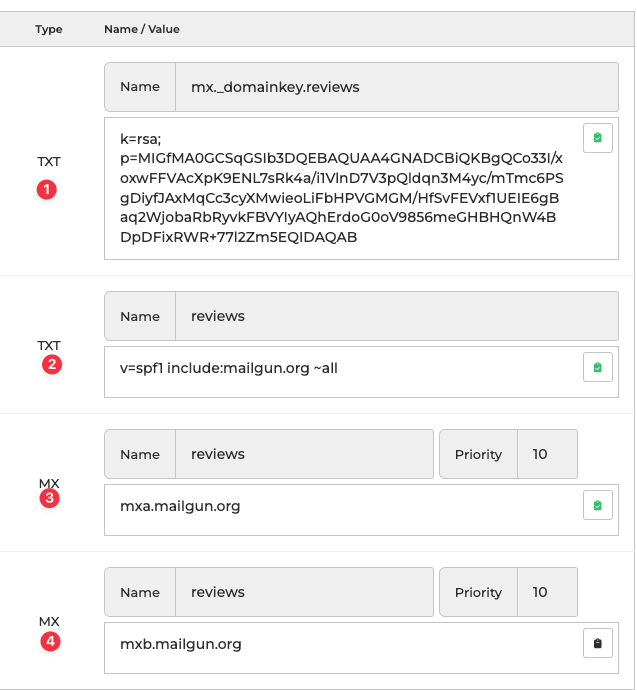
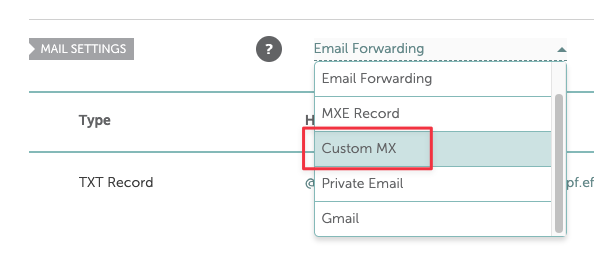
Adding MX records
Then verify domain
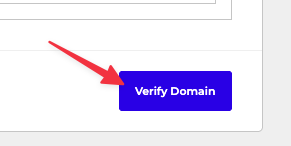
Wait until you see the Successfully Verified text

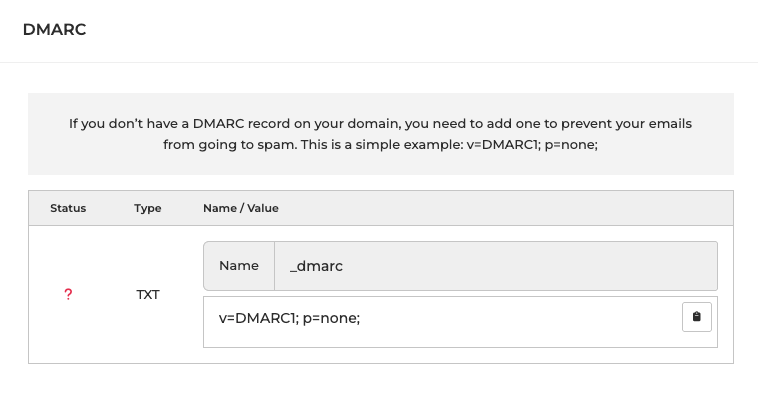
Adding DMARC
So your emails will not go into SPAM box.
Copy the values from DMARC, and paste it at Namecheap, same like above.
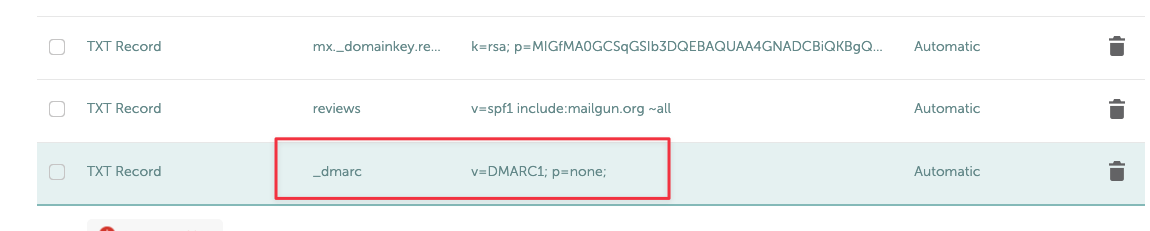
 +ADD A NEW RECORD at Namecheap, paste and click save.
Adding CNAME Record
so when people go to "review.yourcompany.com", it will load GoReview's dashboard.
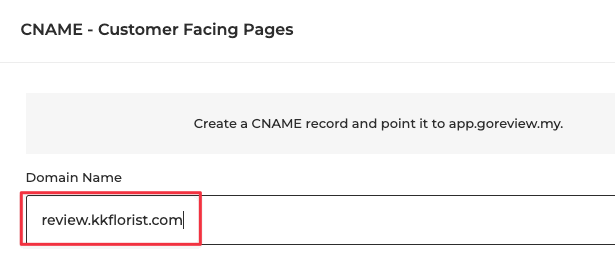
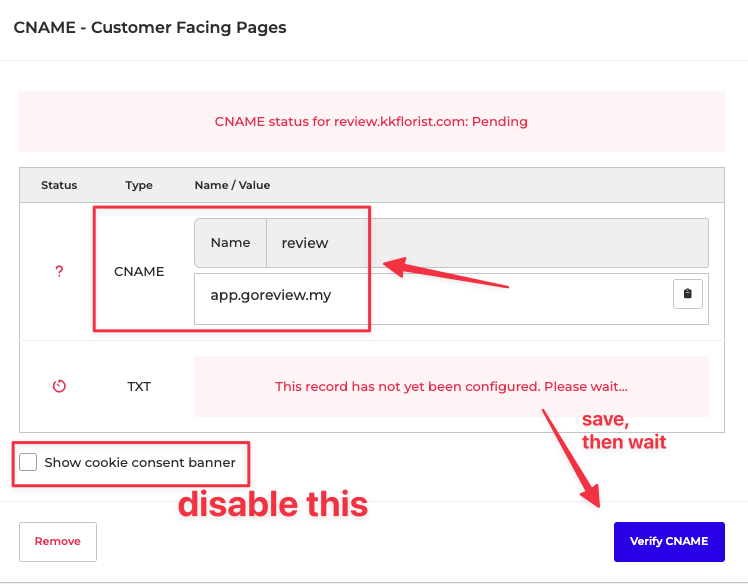
Click on Verify, then it will show a CNAME value
Copy the value of CNAME, and add to Namecheap...
Once TXT file appears, add this record to Namecheap again.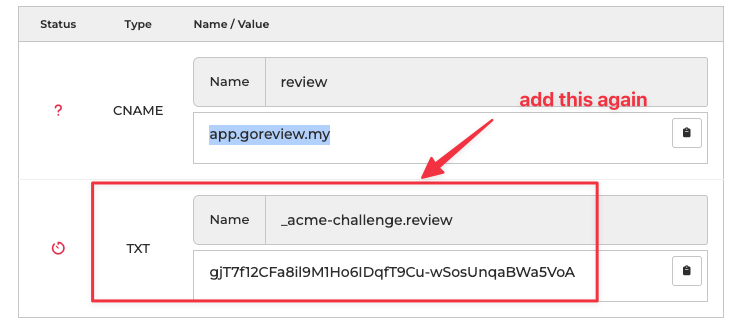
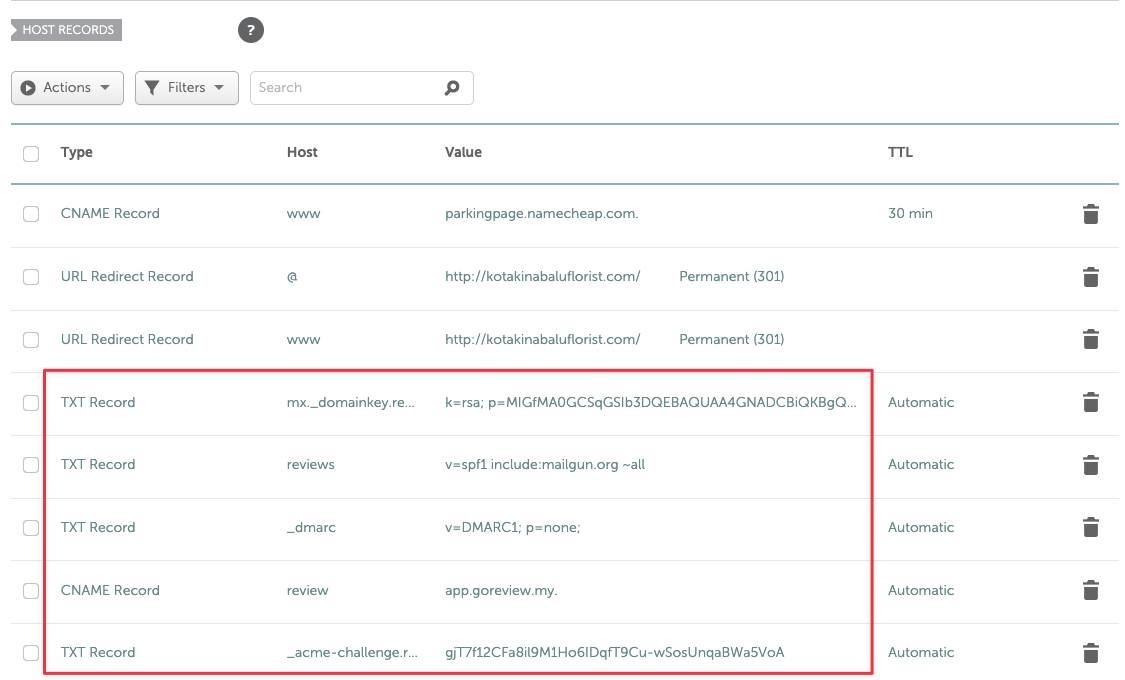
The Record Should Be Similar To This
CNAME Setup
Any domain that is not a sending domain is considered a CNAME. This means it is simply a subdomain you set up in your DNS that points to our platform. You will need to add 1 CNAME record and 1 TXT record per CNAME. After adding your domain in the console, a TXT record will be generated within a few minutes. This TXT record is required for SSL certificate issuance, enabling us to serve your assets securely over HTTPS.
If you do not add the CNAME for the client portal, the software will not be white labeled, and your clients will be directed to goreview.com to create an account.